AI Transcriber for Obsidian
AI Transcriber is a desktop Obsidian plugin that turns existing audio and video files into notes with OpenAI GPT Transcribe, GPT-4o Transcribe, GPT-4o Mini Transcribe, or Whisper.
Choose the spoken language and optionally refine transcripts with post-processing and custom dictionary corrections.
Install AI Transcriber from Obsidian Community Plugins
What AI Transcriber Does
- Transcribe existing files: Convert audio and video files into text notes saved in your Obsidian vault.
- Choose a transcription model: Use GPT Transcribe, GPT-4o Transcribe, GPT-4o Mini Transcribe, or Whisper.
- Refine the result: Select a language and optionally use AI post-processing and custom dictionary corrections.
Supported Audio and Video Formats
- Audio: MP3, M4A, WAV, FLAC, OGG, and AAC
- Video: MP4, M4V, MOV, AVI, MKV, and WebM
Requirements
- Obsidian 1.8.7 or later on desktop; mobile is not supported.
- Your own OpenAI API account and API key.
- An internet connection for OpenAI API calls. OpenAI API usage is billed separately by OpenAI.
Audio is sent to OpenAI for transcription. Transcript text and related context are sent to OpenAI when AI post-processing is enabled.
For eligible files and models, the plugin may upload the file directly to OpenAI as an automatic transport optimization. Time ranges, local VAD, large files, and unsupported direct-upload formats are processed locally before upload.
Plugin data stores settings and up to 50 history items. History can include a short preview, but the completed full transcript is not retained as a second copy.
View the AI Transcriber source code and documentation on GitHub.
Installation
Install the plugin in either of these ways:
- From Obsidian: Open Settings → Community plugins → Browse, search for
AI Transcriber, then install and enable it. - From the Community site: Open the AI Transcriber Community Plugin page and select
Add to Obsidian. Obsidian opens so you can install the plugin.
Settings
Once enabled, you can configure the plugin. Adjust as you use it.
For new settings, GPT Transcribe (gpt-transcribe) is the default and recommended starting point for recorded speech. GPT-4o Transcribe, the lower-cost GPT-4o Mini Transcribe, and Whisper for timestamped output remain available.
- API Key
Uses your OpenAI API key. Please obtain it beforehand. - Language
Set the language of the audio to be transcribed. The AI can still attempt transcription if this differs, but accuracy improves when it matches the audio.
An auto-detect option is available, though selecting a language is generally preferable. - Output Format
Controls the appearance of the output. Configure to your preference. - Enable Post-processing
Allows the AI to refine wording using reference information you provide in advance. This is processed with GPT‑4.1 mini, which slightly increases token cost. - Enable Dictionary-based Correction
Uses a registered glossary during post-processing. Add words the AI often misrecognizes.
Fixed replacements are applied mechanically; context-aware corrections are handled by the AI. - Output Folder
Specify where to save results. If unset, files are saved at the root of the vault. - Dictionary Management
Opens the dictionary management window.
How to Use
Launch
Click the plugin icon in the left ribbon to open the tool.

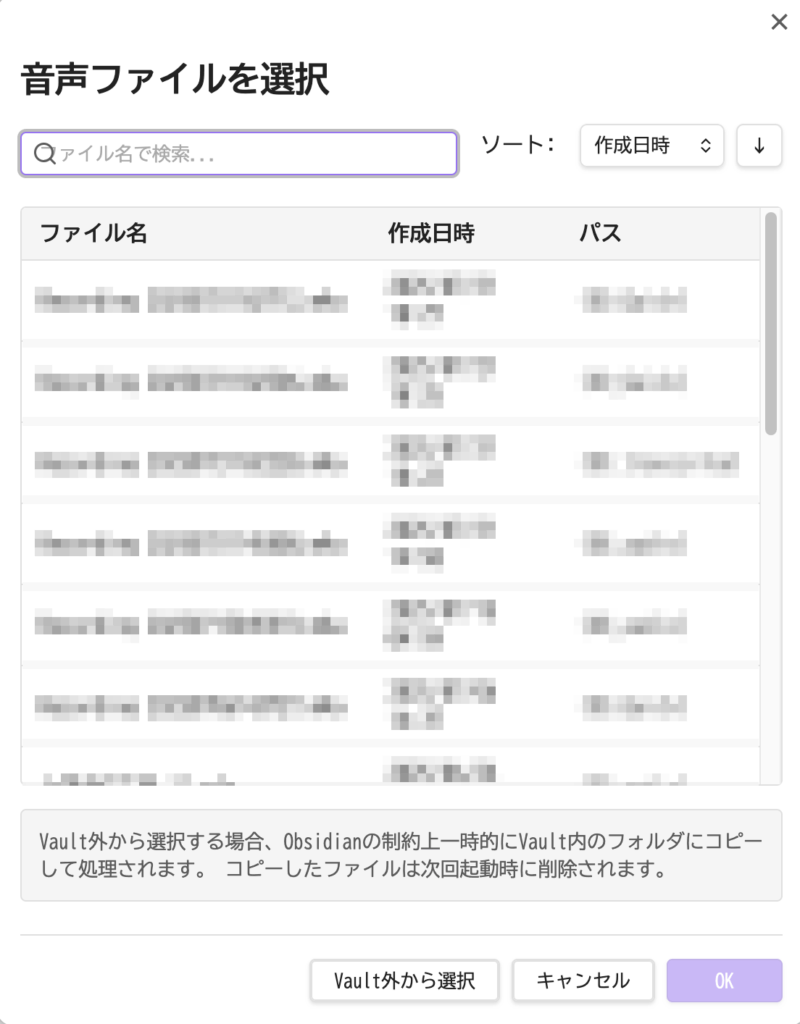
Select Target Audio File
A dialog will prompt you to choose an audio file.
(If you click the icon while an audio file is already selected in Obsidian, the next window opens directly.)
If you have recordings stored in the vault (e.g., made in Obsidian), they appear in the list.
To transcribe audio stored outside the vault, click Select from outside the vault.
Due to Obsidian’s restrictions, external files cannot be referenced directly; a copy will be placed in the vault for processing.
Transcription Settings
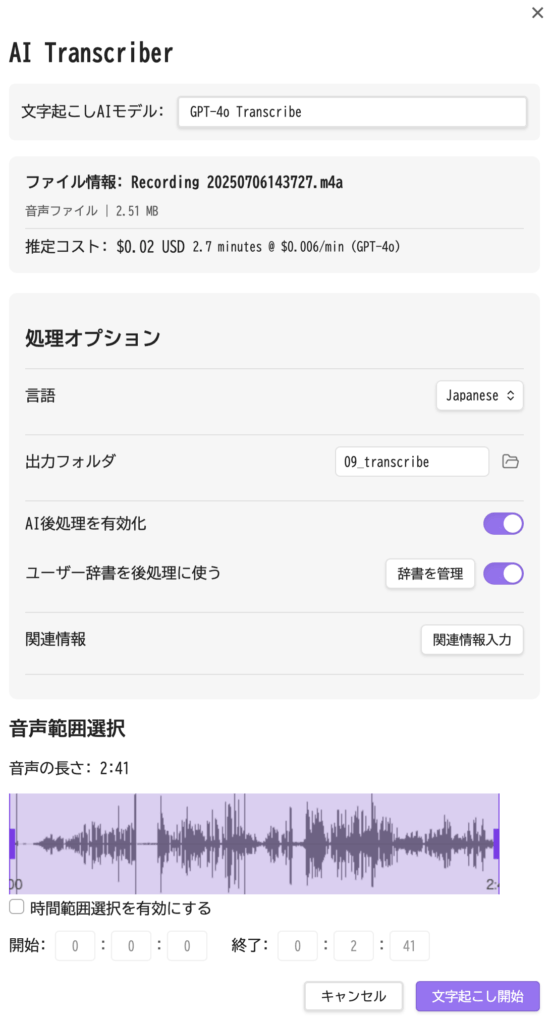
After selecting a file and clicking OK, the next window appears.
You can override the model and other options set in Settings to suit the current task.
In Audio range selection, drag the edges of the purple region to adjust the time span to process.
Enter Supporting Information for Post-processing
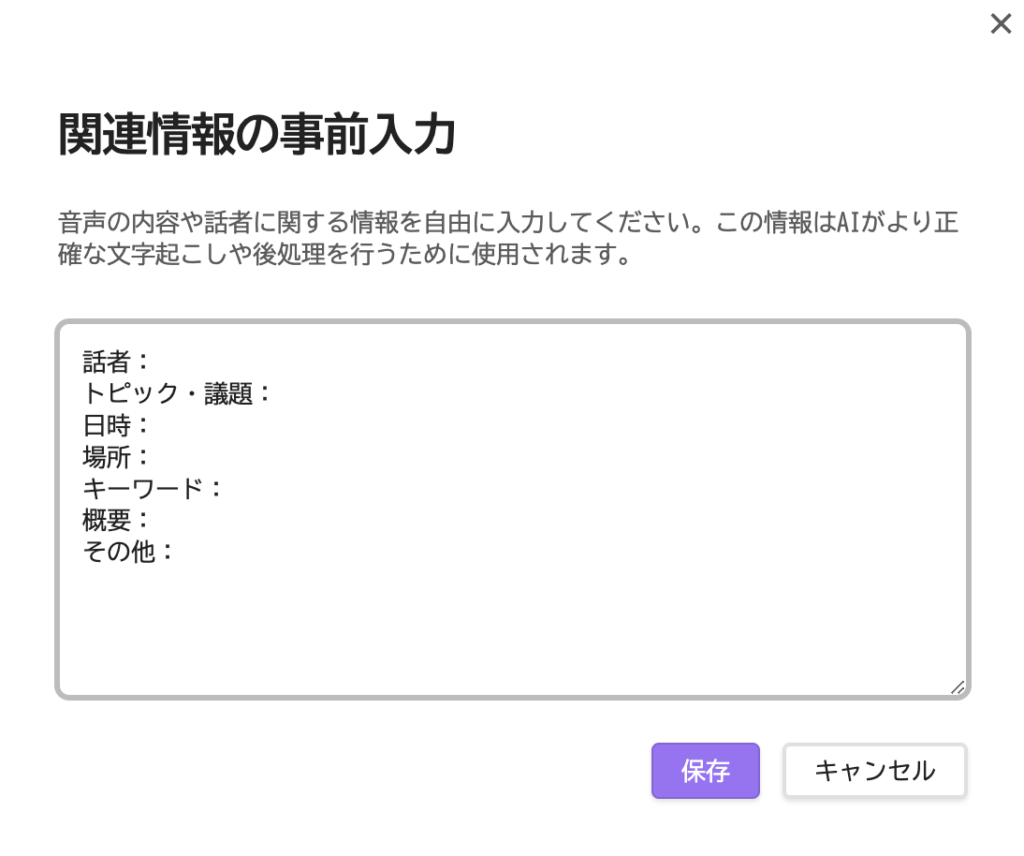
In the pre-input section, you can add metadata (e.g., about a meeting).
This helps post-processing correct mishearings where possible. Pasting rough notes is sufficient.
Note that transcriptions and corrections may not always match your expectations exactly.
Run View
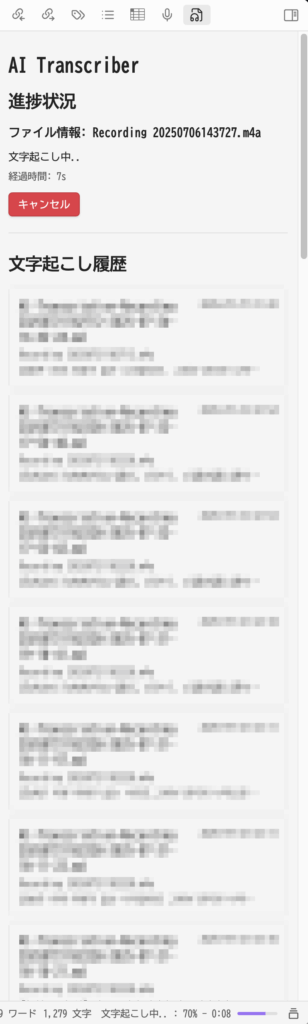
When you start, a bar with approximate progress appears at the bottom right.
Clicking it opens a right-hand panel as shown in the screenshots.
Depending on the model and whether post-processing is enabled, a one-hour recording may complete in roughly five minutes.
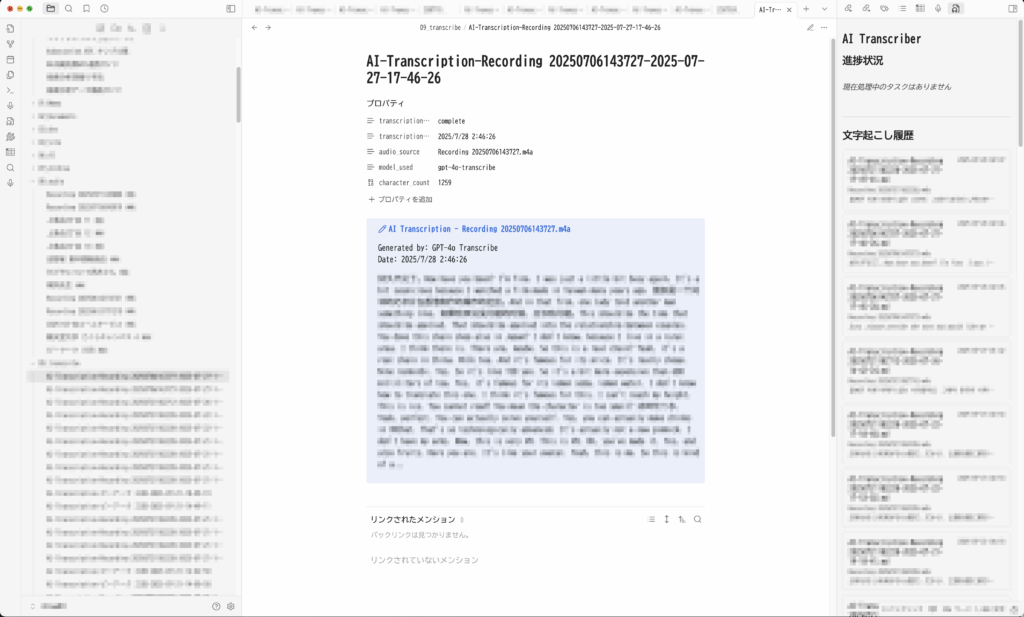
Output
The transcription is produced as shown in the examples.
Important Notes / Disclaimer
AI Transcriber uses AI to automatically transcribe audio.
Due to the nature of AI, transcription results may include misrecognitions or inaccuracies depending on audio quality and speaking styles.
For important content, always review and correct the results before using them.
The developer assumes no responsibility for any damages arising from use of this plugin.