Batch Auto Straighten
Straighten a whole batch in one run, then fine-tune on the familiar Angle slider.
Batch Auto Straighten estimates the tilt of each photo you select in Lightroom Classic and applies it as that photo’s Crop & Straighten angle. You don’t have to open photos one by one. When the run finishes, the Angle slider shows how far each photo was rotated, so you can fine-tune the ones that need it the usual way.
Download the latest version (GitHub Releases) · Free · For Apple silicon Macs
Crop & Straighten, Not Transform
Lightroom Classic can already level a batch: apply Level in the Transform panel and sync the Upright mode, and each photo is analyzed on its own. Batch Auto Straighten takes a different route. It leaves Transform alone and sets the same Crop & Straighten angle you would set by hand.
- The result is an ordinary angle: you read it on the Angle slider and adjust or reset it there.
- Transform settings, including Upright, stay as they are.
Also Included
- Per-photo estimates. The plug-in uses its own image analysis rather than the Auto button in Crop. It can also prefer the level recorded by your camera.
- Matching RAW and JPEG. By default, both versions of a shot get the same angle, taken from one reference photo.
- A limit on large corrections. If a photo’s final angle would exceed the limit (3° either way by default), you can review it first or skip it.
- Existing angles are left alone. By default, photos that already have an angle are skipped.
- Local processing. All analysis runs on your Mac.
Requirements
- Adobe Lightroom Classic (not the cloud-based Lightroom app)
- A Mac with Apple silicon running macOS 26 or later (Windows and Intel-based Macs are not supported)
- Access to the original photo files (videos and photos with only Smart Previews are skipped)
Install
- Download the
.dmgor.zipfrom GitHub Releases. Both contain the same plug-in. - Copy
BatchAutoStraighten.lrpluginto a folder on your Mac where it can stay. A plug-in added straight from the DMG stops working once the DMG is ejected (unmounted). - In Lightroom Classic, choose File → Plug-in Manager, click Add, and select the copied plug-in. Make sure it is enabled, then click Done.
To update, quit Lightroom Classic and replace your copy with the new version.
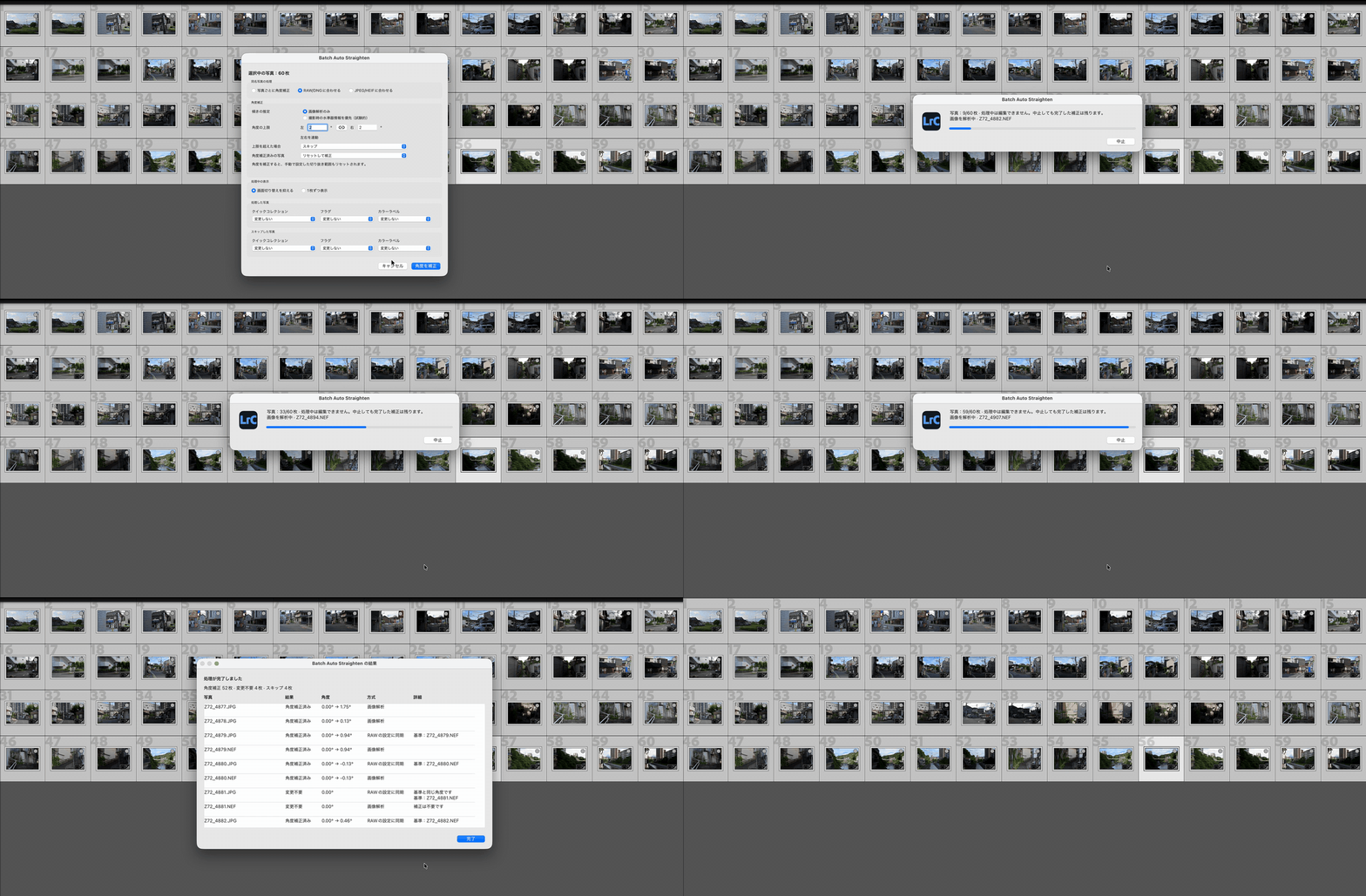
Straighten Your Photos
- Select the photos.
- Choose Library → Plug-in Extras → Batch Auto Straighten (also under File → Plug-in Extras).
- Check the settings and click Straighten Photos. Hover over any setting for a short explanation.
When the run finishes, a results dialog lists every photo, and the Details column explains any skip or problem. Start with a handful of photos to see how the results look.
Worth Knowing
- RAW and JPEG are matched only when both are selected, in the same folder, and share a name apart from the extension, such as
DSC0001.ARWandDSC0001.JPG. - The limit applies to the final angle, not to how far the angle changes.
- Reset and Straighten also removes manual crops. This option re-straightens photos that already have an angle and clears any crop you set by hand on them.
- Sony cameras: their level data is not supported, so Sony photos always use image analysis.
For marks (flags, color labels, Quick Collection), display options and the full list of results, see the README.
Troubleshooting
The plug-in isn’t in the menu
Check that Batch Auto Straighten is enabled in File → Plug-in Manager. If you moved the plug-in or added it from inside the DMG, add the copy on your Mac again.
Some photos were skipped
The Details column explains why. Photos without a clear horizon or vertical lines may not get a reliable estimate; straighten those by hand.
How do I undo a correction?
You can adjust or reset the angle in Develop at any time. Resetting the angle does not bring back a manual crop removed by Reset and Straighten. To return to the state before the correction, choose an earlier step in the History panel.
I stopped a run partway
Photos that were already straightened keep their new angle, and the rest are listed as Unprocessed. Changing the selection, switching modules, or editing a photo during a run can also stop it, so let it finish before you carry on working.
Batch Auto Straighten is open source under the MIT License; see NOTICE for third-party licenses. Report problems or suggest improvements on GitHub.